Dual-channel memory means your system uses two RAM sticks together instead of one, giving the CPU two data lanes instead of one. That extra lane roughly doubles memory bandwidth, and it matters most in gaming and multitasking, where the CPU and GPU are constantly asking RAM for more data.
Single-Channel vs. Dual-Channel: What's the Actual Difference?
Picture your RAM as a road between memory and the CPU. Single-channel setups run on that road alone. One stick, one lane, one line of traffic moving data back and forth.
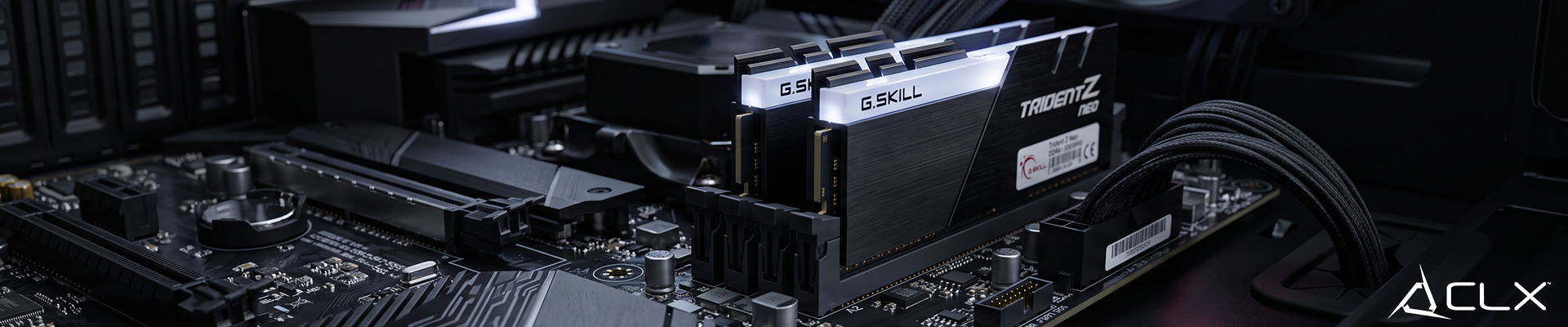
Dual-channel setups add a second lane. Install two matched RAM sticks in the correct motherboard slots, and the system splits the workload across both, moving data in parallel instead of one file at a time. The CPU isn't waiting as long for the next chunk of data, because two lanes are feeding it at once.
The bandwidth gain is real: dual-channel configurations can move close to twice the data per cycle compared to a single stick of the same speed. That's not a hypothetical. It's how the memory controller on modern desktop platforms is built to work.
Why Does Dual-Channel Memory Matter for Everyday Performance?
Games and heavy multitaskers push a constant stream of requests through RAM. When there's only one lane open, that stream backs up. Frame rates dip, load times stretch, and background apps compete with your game for the same limited path.
Dual-channel memory doesn't just move data faster, it changes how consistently a system performs under real load. That consistency is the difference most people actually notice, not a raw number on a spec sheet.
How Do You Check If Your System Is Running Dual-Channel Memory?
You can check this in about two minutes:
- Task Manager (Windows): Open Task Manager, go to the Performance tab, click Memory. If it lists slot usage like '2 of 4' with matched capacities, you're likely running dual-channel.
- CPU-Z: Free and more precise. Open the Memory tab and look for 'Channel #.' It'll say Single or Dual directly.
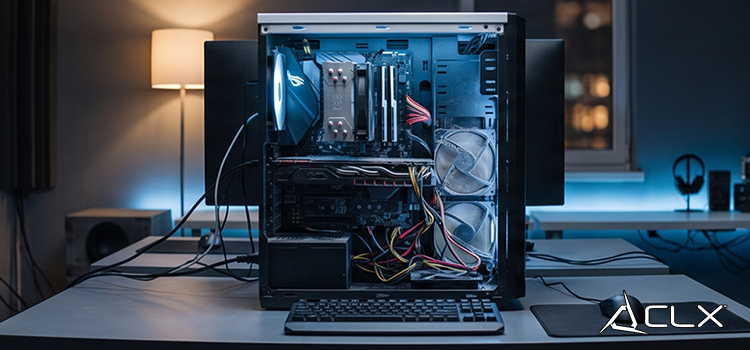
- Physical check: Open or look through the glass of the case and confirm two RAM sticks are installed in the correct slots per your motherboard manual. One stick in the wrong slot pair still runs single-channel even with two sticks installed.
Is Upgrading to Dual-Channel Memory Worth It?
If you're running a single stick right now, adding a matched second stick is one of the cheapest performance upgrades available; the catch in 2026 is that DDR5 kits are supply-constrained, and prices reflect that.
For gaming rigs built around current-generation CPUs; dual-channel isn't optional. It's the baseline these platforms are designed around, and running single-channel on them leaves real performance on the table.
For light productivity use, browsing, or basic office work, the gap is smaller. If your workload never pushes RAM hard, you won't feel much difference either way.
Every RAM upgrade should specify capacity, kit count, and channel config plainly. If a build sheet just says '16GB' without saying whether that's a single stick or a 2x8GB kit, that's a spec sheet worth questioning.
Check Your Build's Memory Config Before You Buy
Dual-channel memory isn't a nice-to-have on a modern gaming PC, it's part of the foundation the platform expects. Before buying prebuilt or upgrading your own rig, confirm the RAM configuration in writing, not just the total capacity.
See how CLX configures memory across current builds on the CLX configurator.