No one likes a computer that struggles to keep up. Whether you’re a gamer aiming for smoother frame rates or a professional striving to meet tight deadlines, your computer’s performance plays a significant role in your productivity and experience. Over time, even the fastest systems can slow down as clutter accumulates or components wear out. But don’t worry, there are effective ways to rejuvenate your machine.
This guide walks you through actionable steps to speed up your system and keep it running like new. From tackling clutter to optimizing software and hardware, you’ll find everything you need to elevate your computer's performance.
Decluttering Your Hard Drive
One of the quickest ways to boost your computer’s speed is to free up storage space. Over time, unnecessary files, duplicate media, and outdated programs take up valuable space on your hard drive, slowing your system down significantly.
Steps to Declutter
- Uninstall Unused Programs
Go through your list of installed programs and remove software you no longer use. Tools like PC Decrapifier make this process easier by identifying bloatware and other unnecessary applications.
- Delete Temporary Files
Operating systems like Windows store temporary files, log files, and cached data. Access these via the Disk Cleanup Tool on Windows or the Storage Management menu on macOS. Regularly deleting these files can reclaim a surprising amount of disk space.
- Organize Your Files
Store large media files like pictures, videos, and music on an external hard drive or cloud storage services such as Google Drive or Dropbox. Keeping your hard drive below 90% capacity significantly improves system performance.
Pro tip: If you’re gaming, always prioritize installing your games on an SSD (solid-state drive) rather than a traditional hard drive. This reduces load times and vastly improves in-game responsiveness.
Managing Startup Programs
Does your computer take forever to boot up? That’s often because too many programs run during startup. These programs use up your system’s memory and CPU power, slowing down the operating system before you even start working.
Steps to Optimize Startup Programs
1. Check Your Startup List
On Windows, open Task Manager (Ctrl + Shift + Esc) and go to the 'Startup' tab to view all programs that launch when your computer boots. Disable nonessential programs like Spotify, Discord, or Skype.
On macOS, go to System Preferences > Users & Groups > Login Items to remove unnecessary startup programs.
2. Enable Only Crucial Software
Keep startup items limited to programs like antivirus software and essential drivers. These tools support security and functionality without bogging down your system.
3. Use a Dedicated Startup Manager
Third-party tools like CCleaner allow you to manage startup programs efficiently and alert you if certain programs negatively impact your boot time.
Making these adjustments can shave precious seconds off startup time and improve overall system speed.
Updating Your Operating System and Drivers
Keeping your computer’s operating system and drivers up to date is one of the simplest yet most effective ways to maintain performance. Outdated software can lead to slower operations, bugs, and even security vulnerabilities.
Why Regular Updates Matter
- Optimized Performance: Developers constantly release patches to enhance software compatibility and address performance issues.
- Bug Fixes: Updates reduce the likelihood of crashes and errors caused by glitches in outdated programs.
- Enhanced Security: Cyber threats evolve daily, and new OS updates ensure your system is protected against the latest vulnerabilities.
Steps to Update
- Operating System: On Windows, go to Settings > Update & Security > Windows Update. On macOS, head to System Settings > General > Software Update.
- Drivers: For gamers, regularly updating your graphics card driver is crucial for achieving optimal FPS (frames per second). Tools like NVIDIA GeForce Experience or AMD Adrenalin make this process seamless.
Pro tip: Set automatic updates for both your OS and drivers to ensure you never miss a critical enhancement.
Adding More RAM
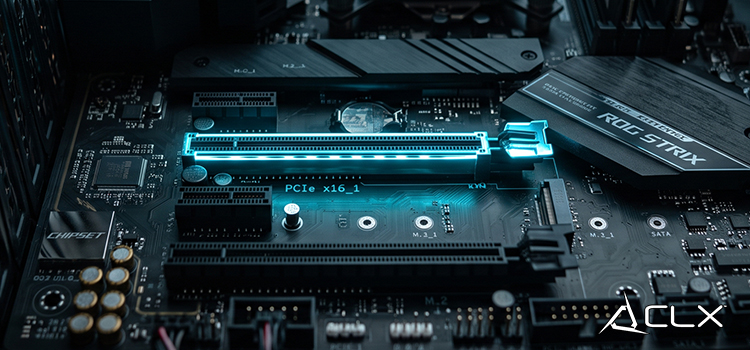
If your system frequently lags despite decluttering and software optimization, the issue might be hardware-related. Adding more RAM (Random Access Memory) can dramatically improve multitasking and system responsiveness.
How RAM Affects Performance
RAM temporarily stores the data your computer actively uses. If you run memory-intensive applications like video editing software or modern games, insufficient RAM can bottleneck your performance.
For most users, upgrading to 16 GB of RAM caters to everyday tasks plus light gaming. Gamers or professionals using resource-heavy applications like CAD software may need 32 GB or more.
Steps to Upgrade RAM
1. Check Compatibility: Verify your computer’s RAM type (DDR4 or DDR5) and maximum capacity via tools like Speccy or your motherboard’s manual.
2. Install the New RAM: Installing RAM sticks is a straightforward process, but if you’re unsure, consult a professional.
3. Test Your System: Use free tools like MemTest86 to ensure your new RAM is working correctly without errors.
Remember, RAM upgrades are among the most cost-effective hardware upgrades you can make to boost responsiveness and multitasking performance.
Maintaining Long-Term Performance
Optimizing your computer’s speed isn’t just a one-time endeavor. Maintaining peak performance requires consistent habits and good system hygiene.
Action Steps for Long-Term Results
- Run Monthly System Maintenance: Use tools like CCleaner or Malwarebytes to keep your system clutter-free.
- Monitor Hardware Health: Apps like HWMonitor allow you to track CPU temperature, RAM usage, and fan speeds, ensuring everything runs smoothly.
- Limit Resource-Intensive Activities: Close unnecessary tabs, uninstall rarely used software, and avoid running multiple heavy applications simultaneously.
The key takeaway is consistency. With reular attention to both your system’s software and hardware, you can ensure your computer performs reliably for years to come.
About Us
CLXGaming is a PC builder based in Wichita, KS that builds prebuilt PCs, custom PCs and laptops for all of your gaming and creative needs. We work with any budget and offer flexible gaming PC financing.
If you would like more information about our PCs, please contact our customer support team at (855) 490-2569 or [email protected]. We pride ourselves on our excellent customer service and are happy to assist with your needs.